
AnchorChartPRO · Available

AI anchor chart maker.
Built for educators.

Create anchor charts and other classroom visuals from a lesson topic or teaching notes. AnchorChartPRO helps K–12 educators organize explanations with grade and subject context, hand-drawn visual styles, and export tools.

Visit AnchorChartPRO Take the virtual tour

From idea to explanation

Teach the concept.
Let the visual support it.

Anchor charts, mind maps, infographics, flowcharts, and more—all shaped around a lesson.

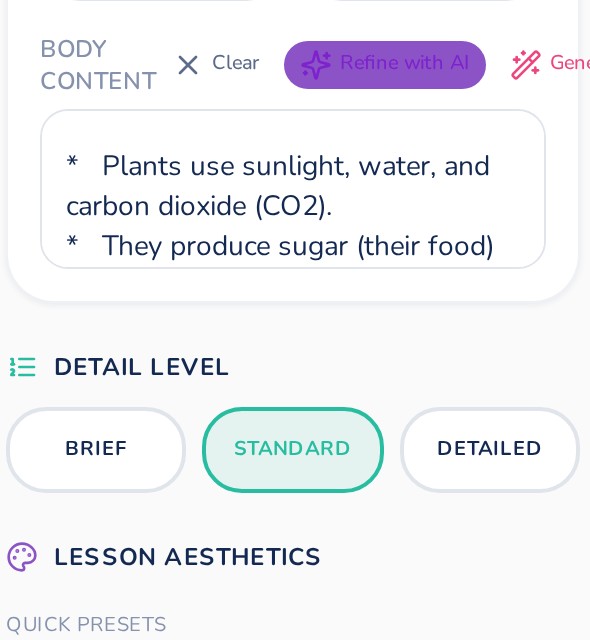
Set grade and subject context, work from your own notes, and explore visual styles. The app also offers spelling review and export tools.

Visit the official site for current plan details and feature access.

Explore the live gallery

Real pictures from AnchorChartPRO’s Resources collection. Select a picture to enlarge it here. A public mind-map or flowchart picture was not available in the reviewed gallery.

Explore the classroom chart preview

A virtual walkthrough

A six-step virtual tour.
From idea to review.

Explore six steps with app screenshots and your selected chart reference. This guided tour does not generate charts.

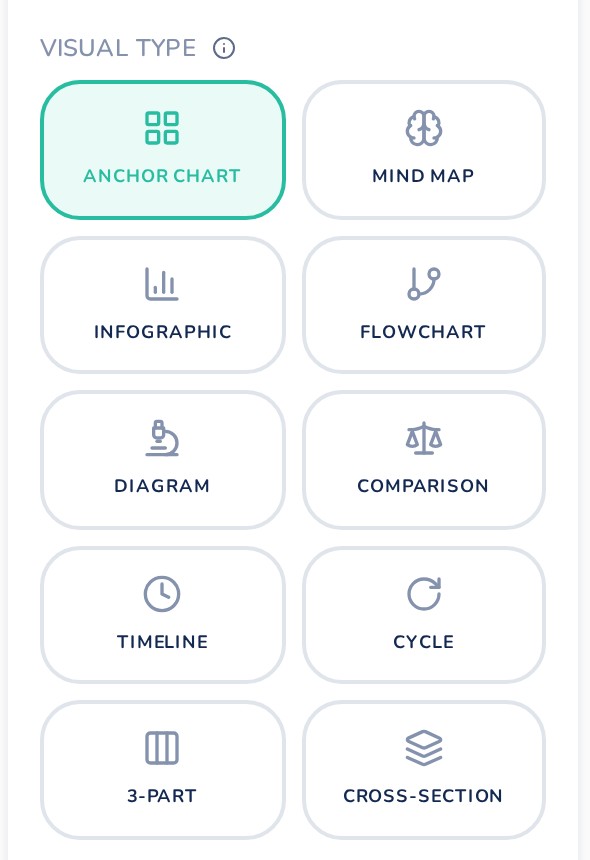
Visual type picker with ten chart formats
STEP 1 OF 6

Choose a format

Start with the kind of visual that fits your lesson.

Step 1 of 6

Steps 1–5 screenshots and workflow: AnchorChartPRO’s official guide ↗. Step 6 uses your selected photosynthesis reference. Interface and plan availability may change.

Ideas for your classroom

One tool.
Many ways to explain.

Original example briefs and lesson previews, created for this tour. These are not generated app outputs.

Grade 3 · Anchor chart

Find the main idea

An example prompt to try

Create a main idea reference chart for Grade 3. Define main idea and supporting details. Use a short paragraph about bees with one main idea and three supporting details.

ILLUSTRATIVE LESSON CONTENT

MAIN IDEA

Bees help plants grow.

  1. Bees carry pollen between flowers.
  2. Pollination helps plants make seeds.
  3. Many fruits begin with pollinated flowers.

Keep the teacher in the loop

Generate.
Review.
Make it yours.

Bring your teaching judgment to the finished resource.

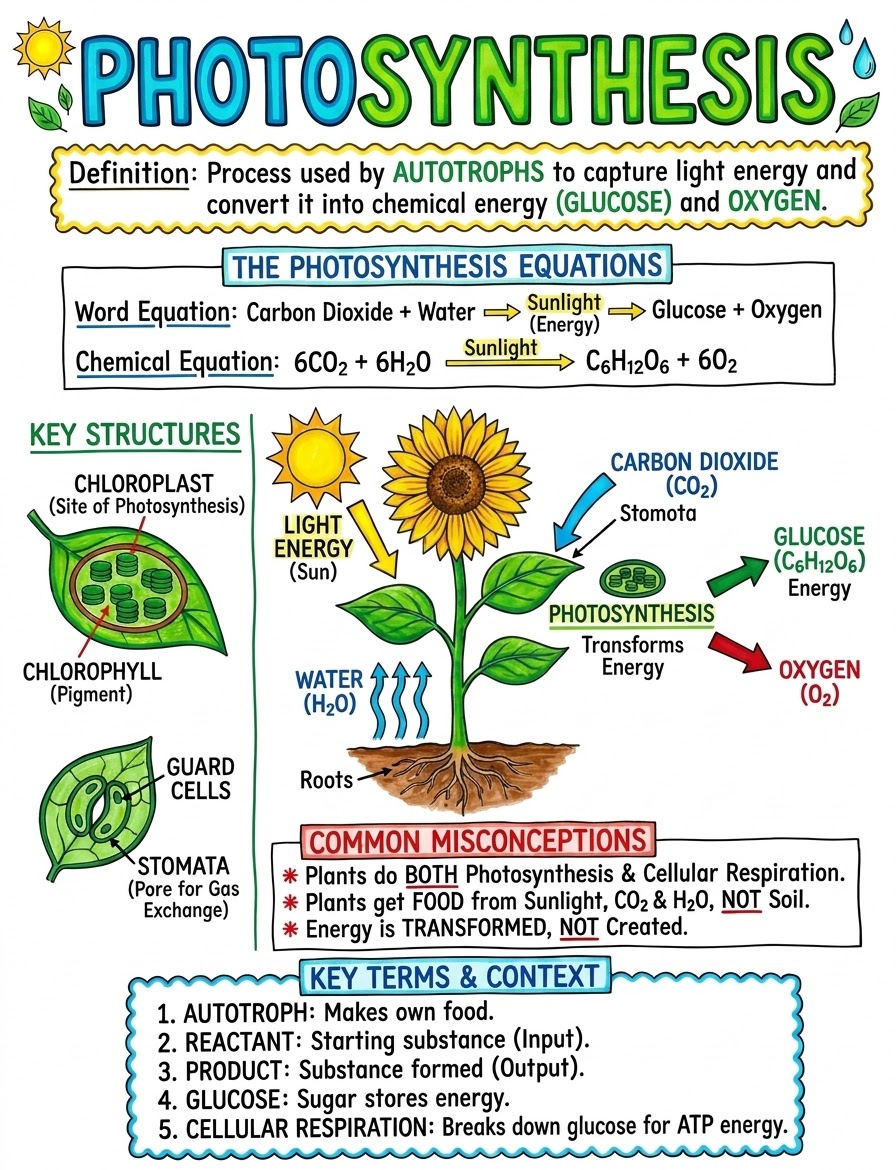
For the photosynthesis reference, review the equations and the distinction between light energy and the materials plants use. For reading, make sure each detail supports the main idea. For writing, choose questions your class can use independently.

Before sharing any AI-created teaching material, review the wording, labels, and lesson fit.

See plans and availability

Before you begin

Classroom questions.
Practical answers.

What can I create with AnchorChartPRO?

AnchorChartPRO supports anchor charts, mind maps, infographics, flowcharts, and other visual formats. Format access depends on your plan; check the current product site before subscribing.

How do I create an AI anchor chart?

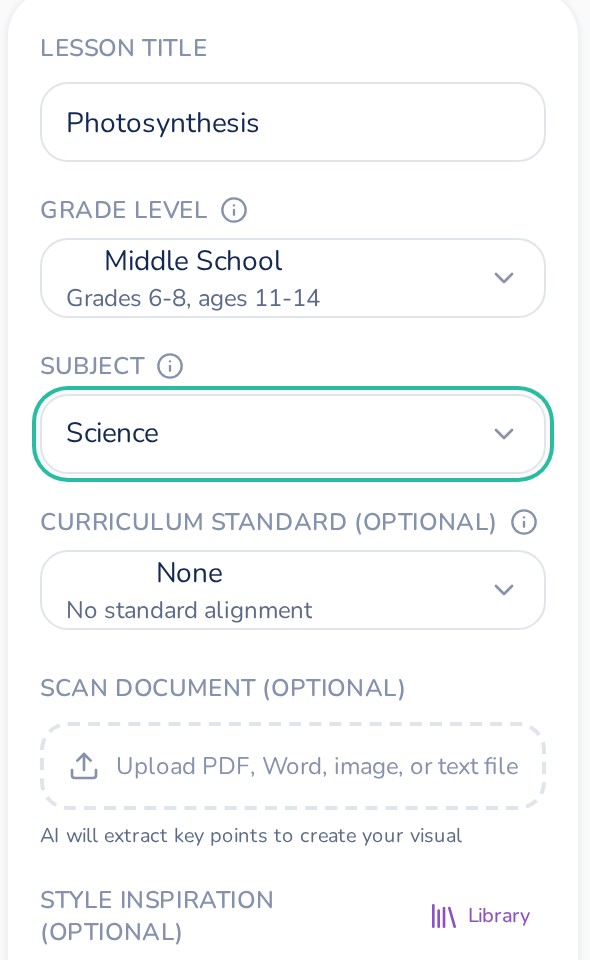
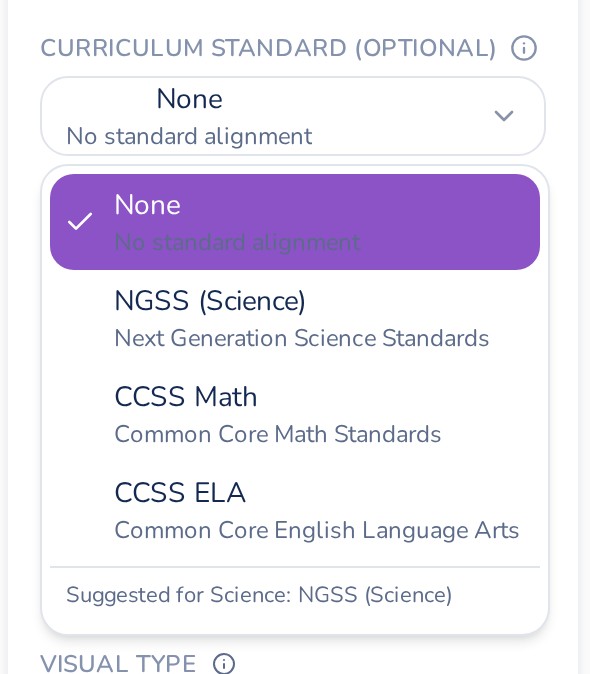
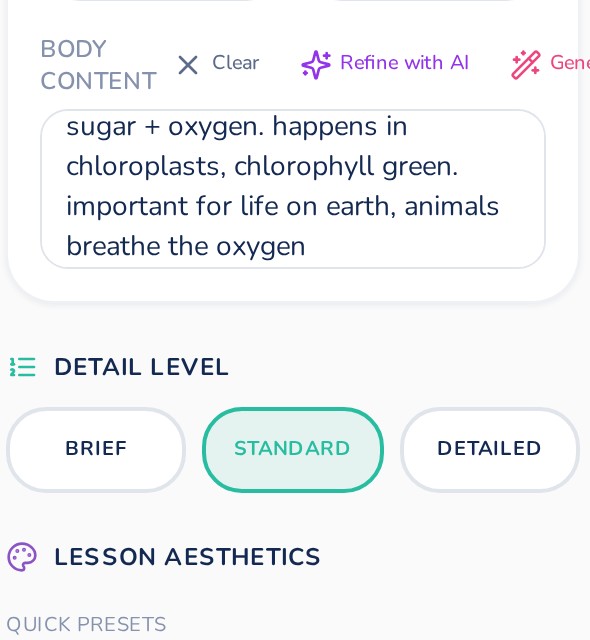
Choose a visual format, enter a lesson title, set the grade and subject, and add your teaching notes. Refine the content, generate a visual, and review its wording, labels, and lesson fit before exporting.

Who is it designed for?

The product is designed for K–12 educators creating classroom references and explanations. Tutors and homeschool educators can also explore whether the workflow fits their lessons.

Do AI-generated charts need teacher review?

Yes. Check spelling, factual accuracy, examples, mathematical notation, readability, and suitability for your learners before sharing. A spelling review tool does not guarantee that every label or explanation is correct.

Bring your next lesson

Start with an idea.
See what it can become.

Open AnchorChartPRO